Skip to content
Made in Premation 1.1

Finished frames, and how each one was made

Drag across any picture to compare the photo with the result. Each piece lists the steps, in the editor's own words.

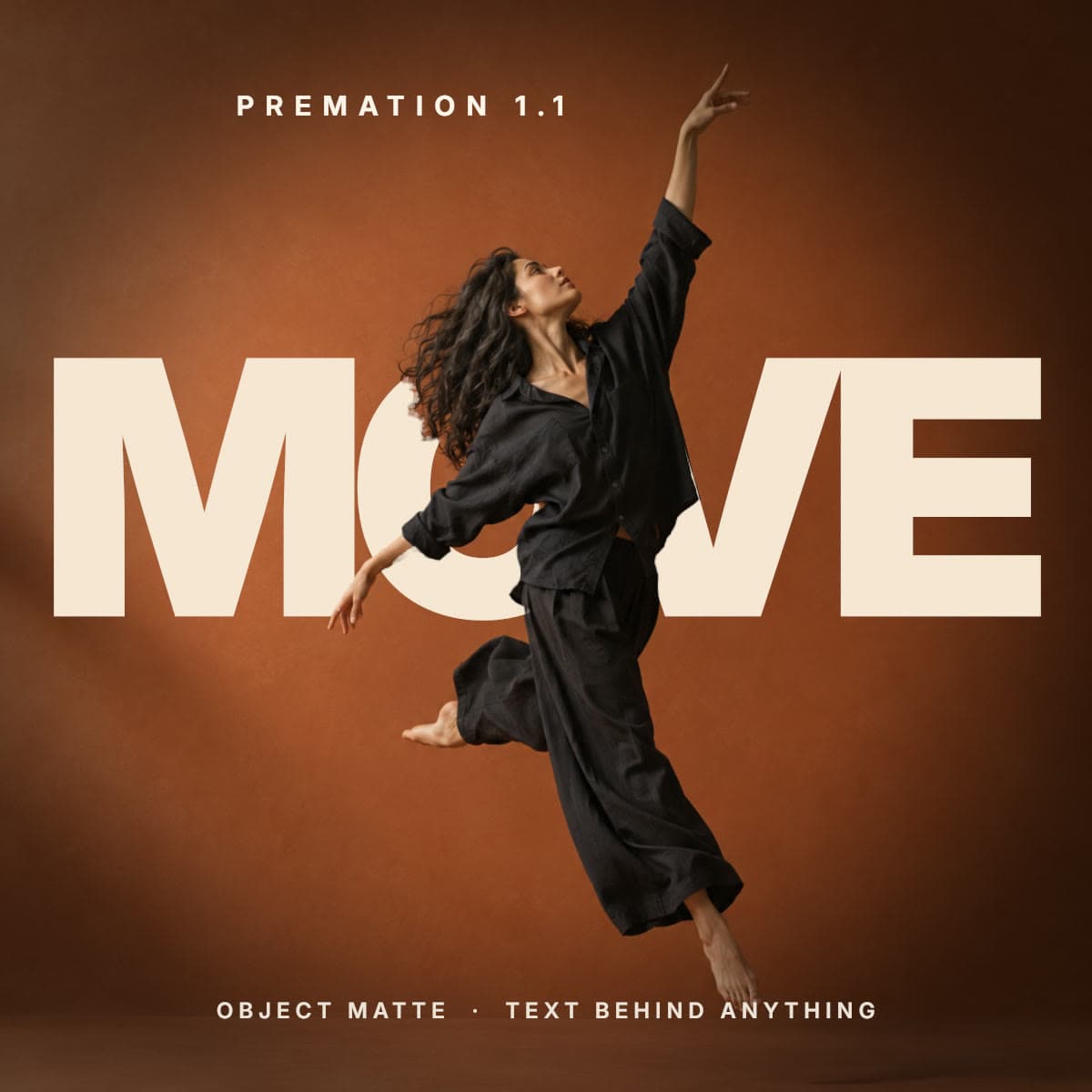
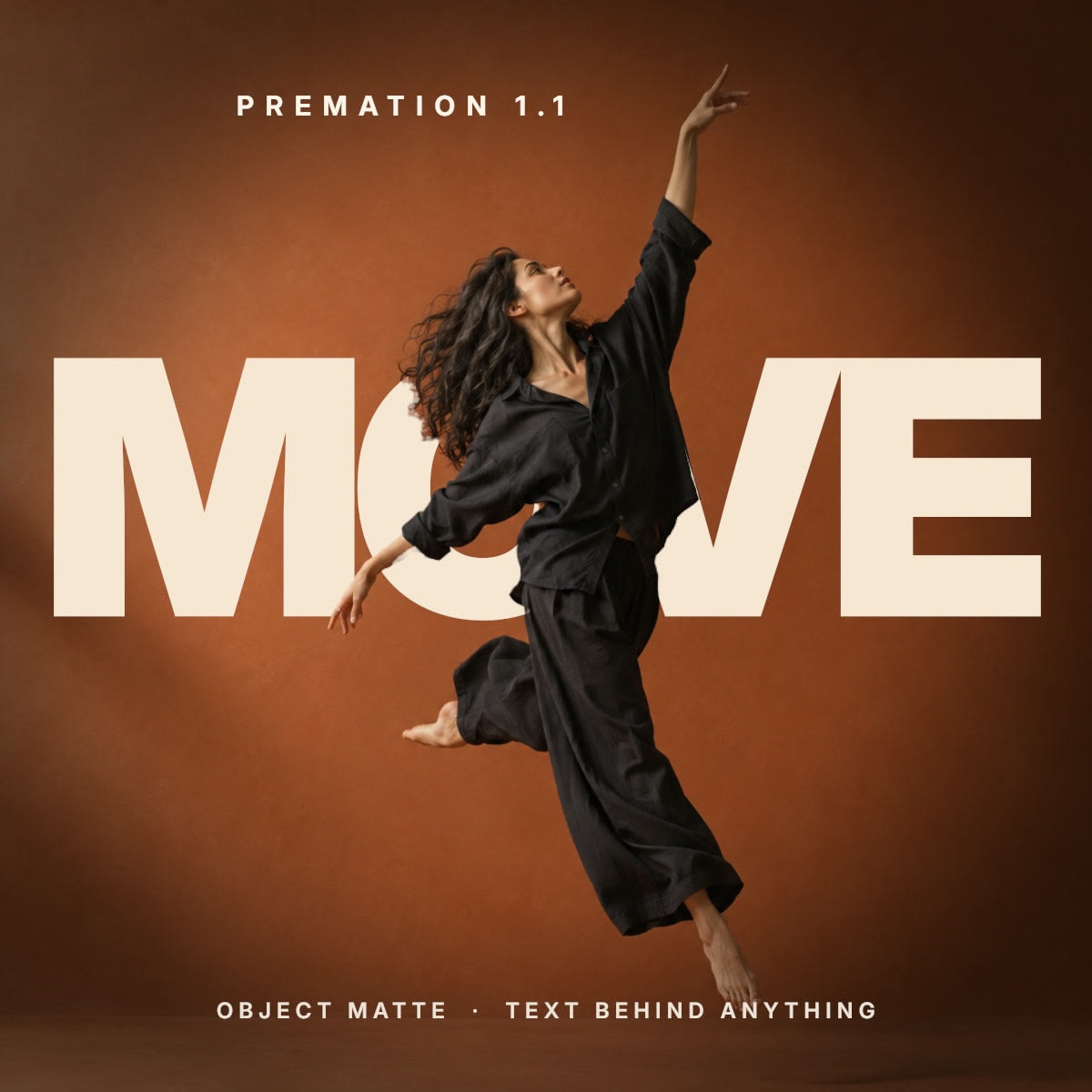
The word MOVE set behind the leaping dancer
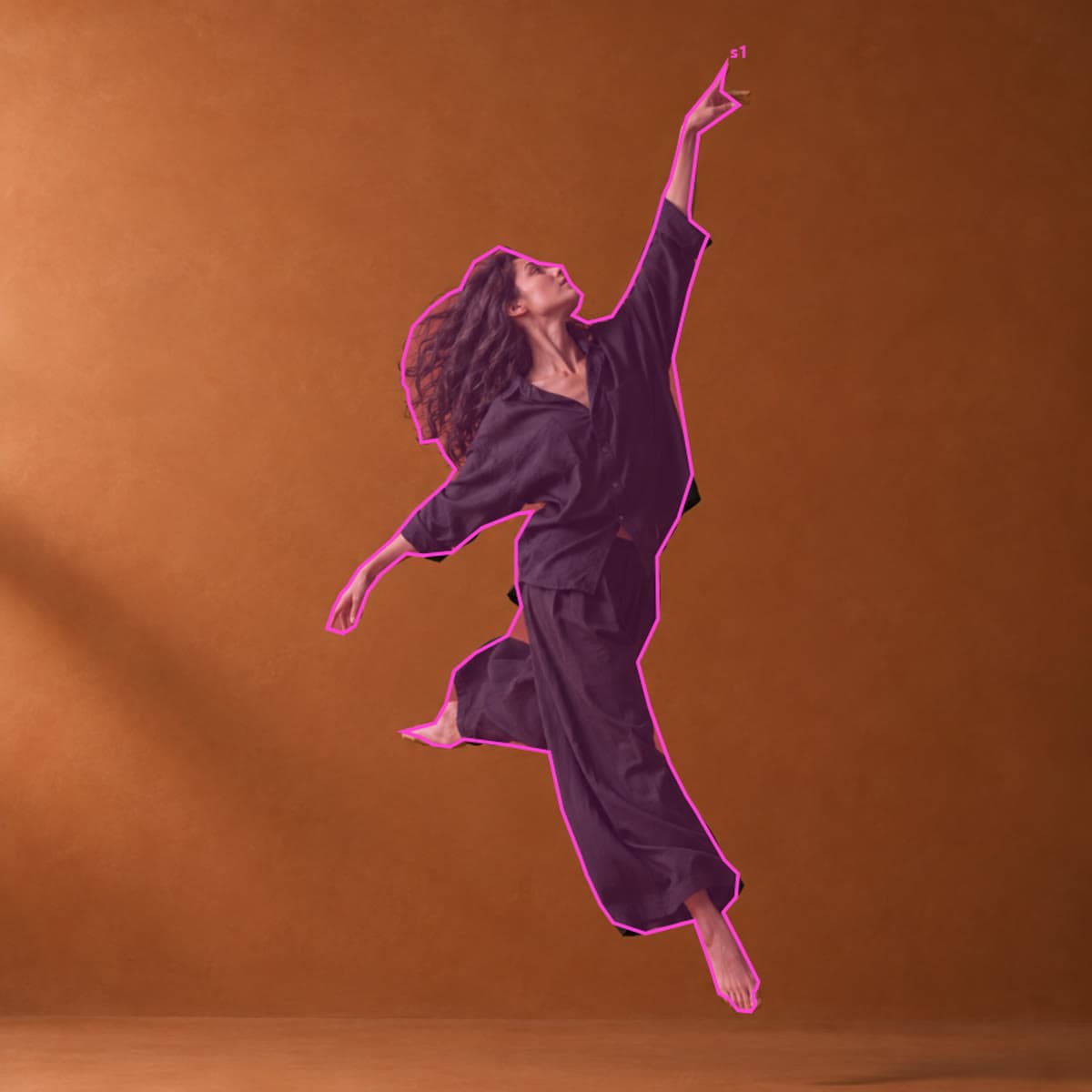
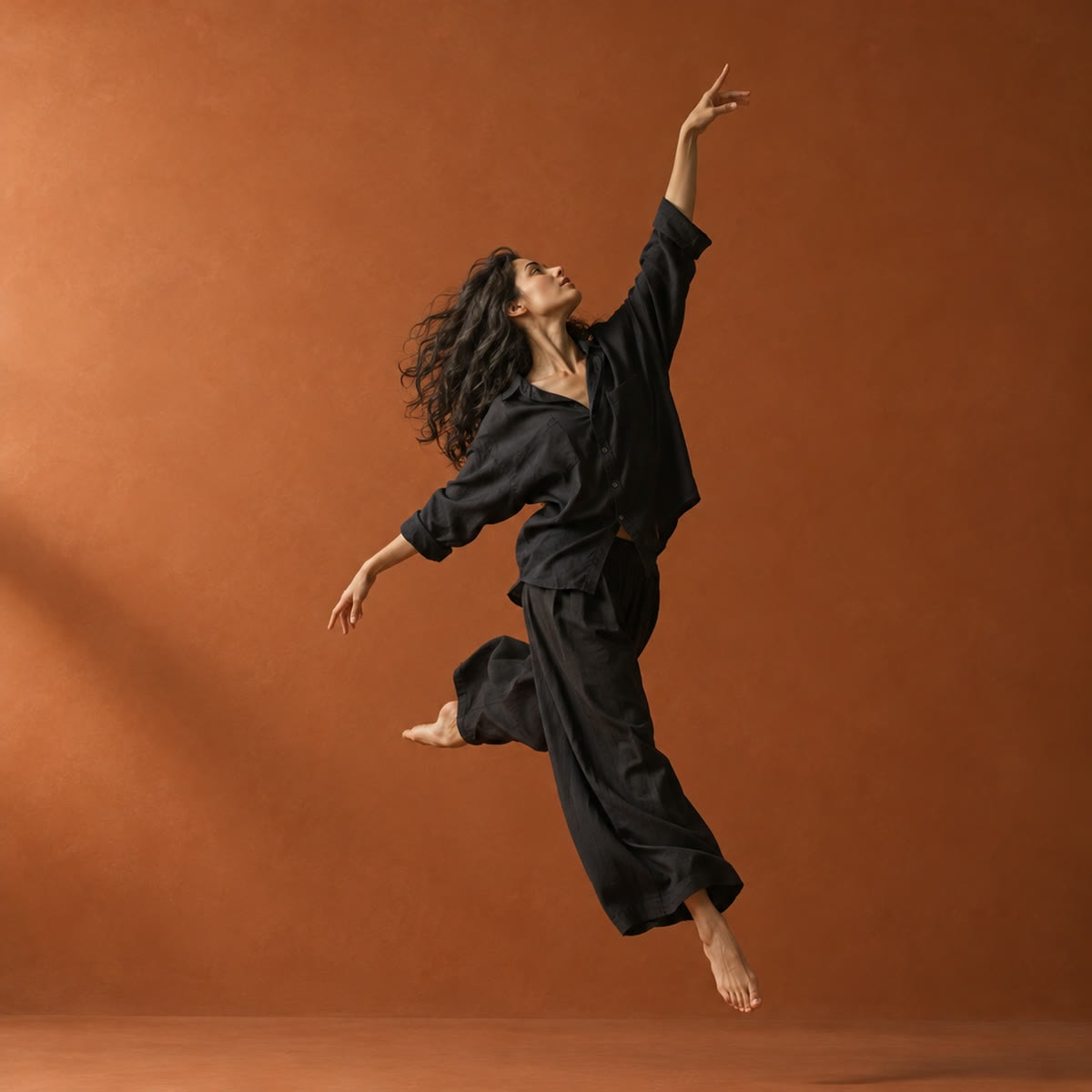
A dancer mid-leap against a terracotta studio wall
PhotoPremation
Text behind subject

Move

A title set behind a dancer mid-leap: her arm, hair and shirt pass in front of the letters.
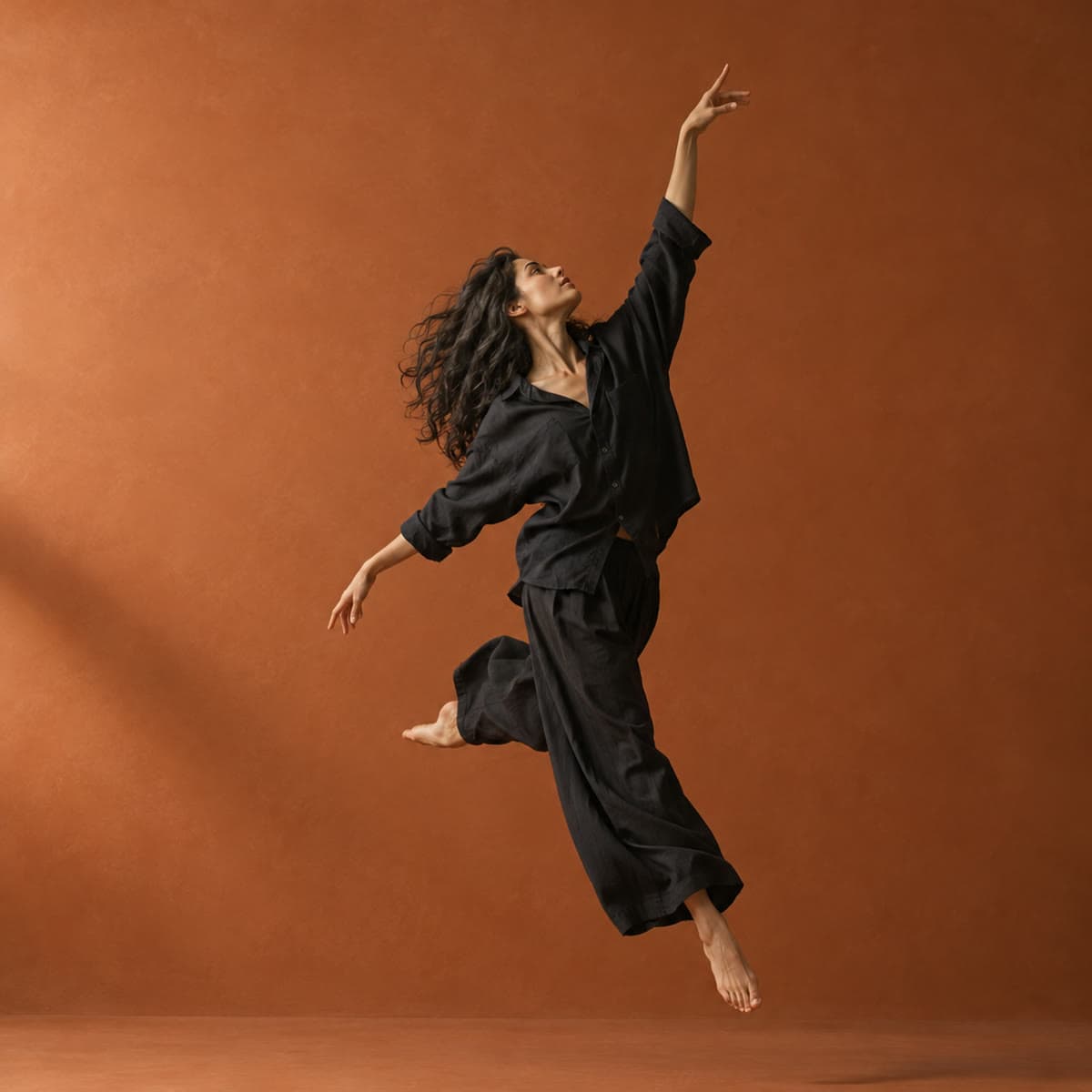
  1. A dancer mid-leap against a terracotta studio wall01 Photo
  2. The dancer outlined by an Object Matte selection02 Object Matte
  3. The word MOVE set behind the leaping dancer03 Result

How it was made

  1. Pick the Object Matte tool and drag a box round the dancer. Click her hand and feet to add them.
  2. Set the type layer to Behind Subject in Properties > Subject.
  3. The matte keeps her hair soft; the letters show through between the curls.
  • Object Matte
  • Behind Subject
  • Vignette
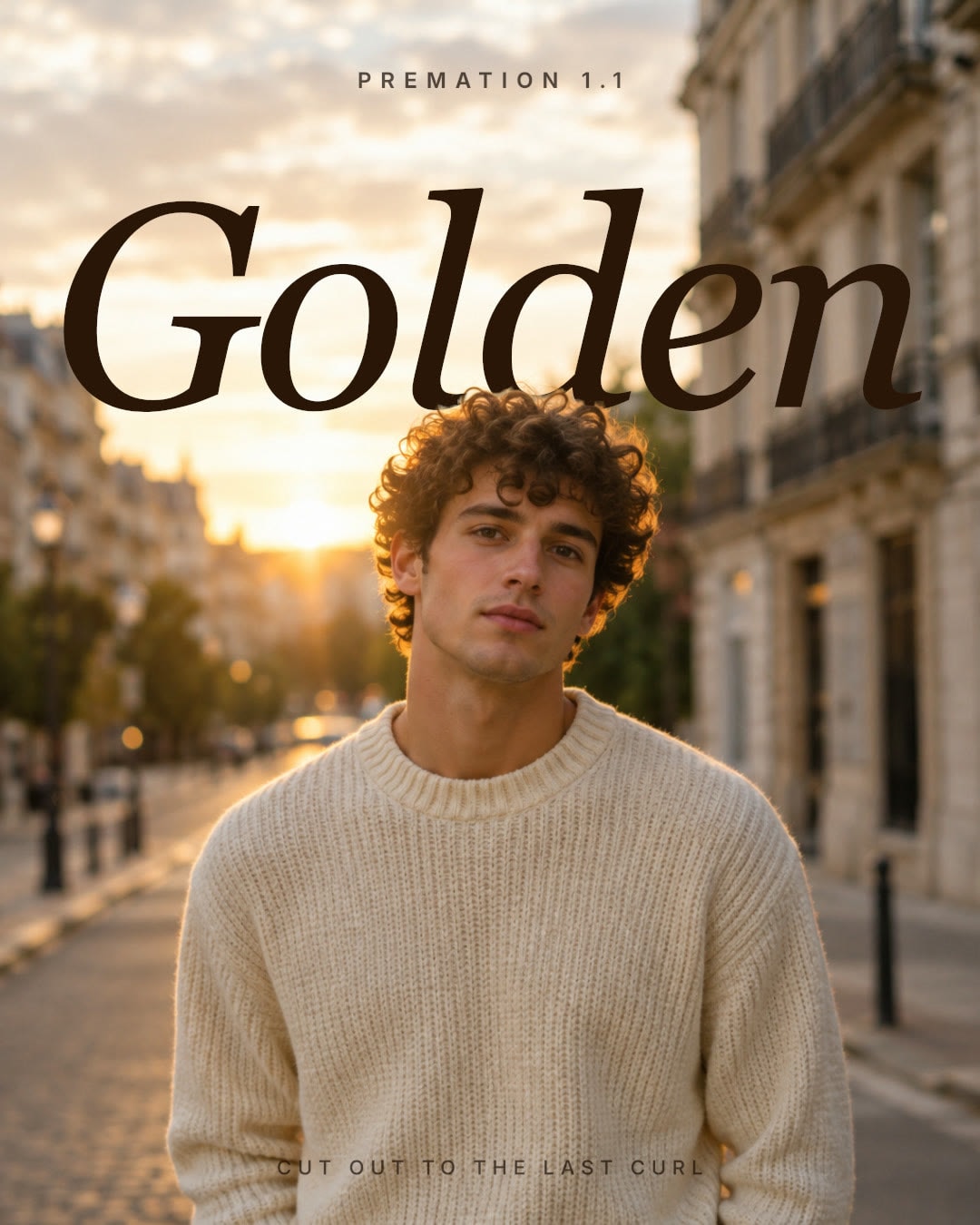
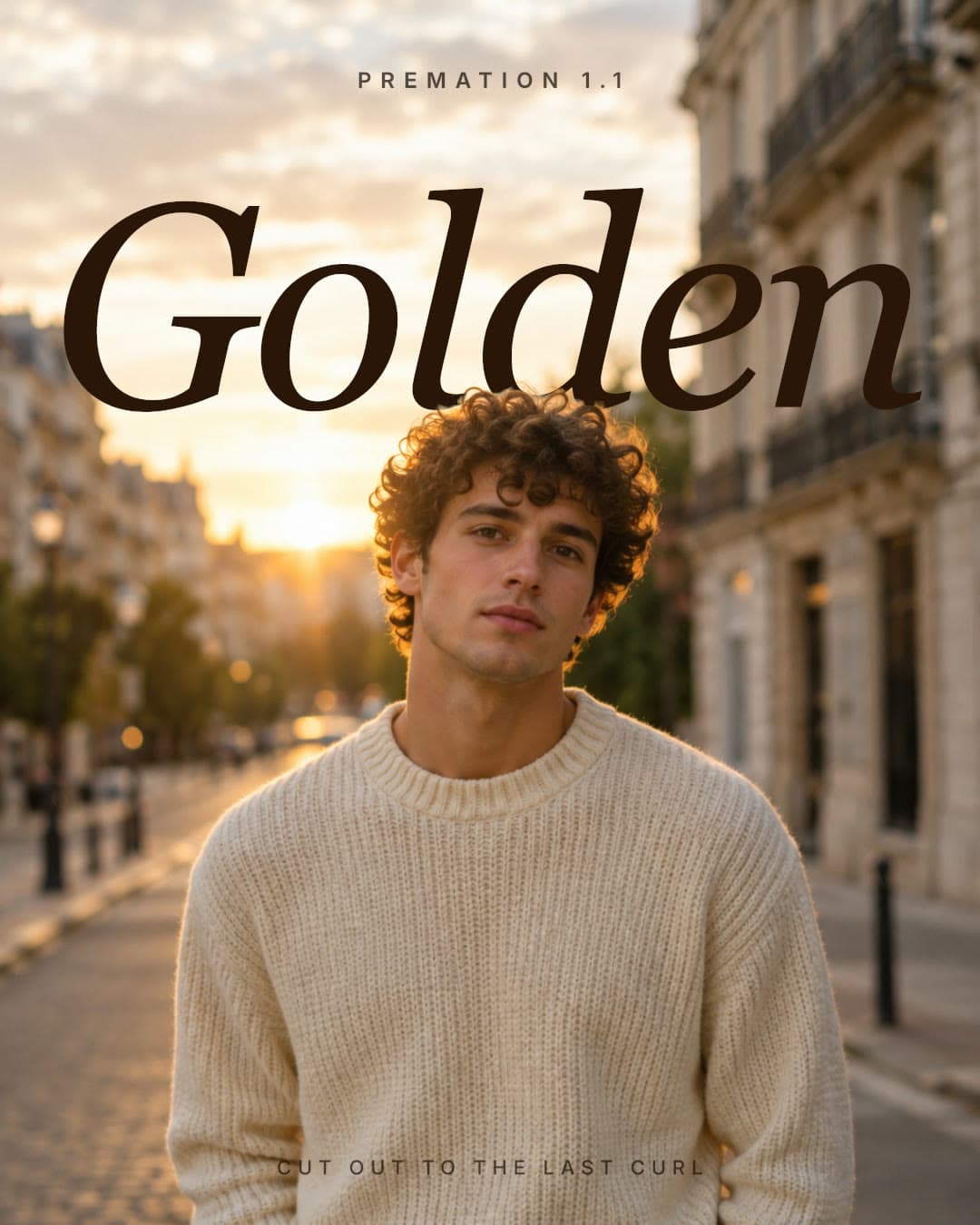
The word Golden set behind the man's curly hair
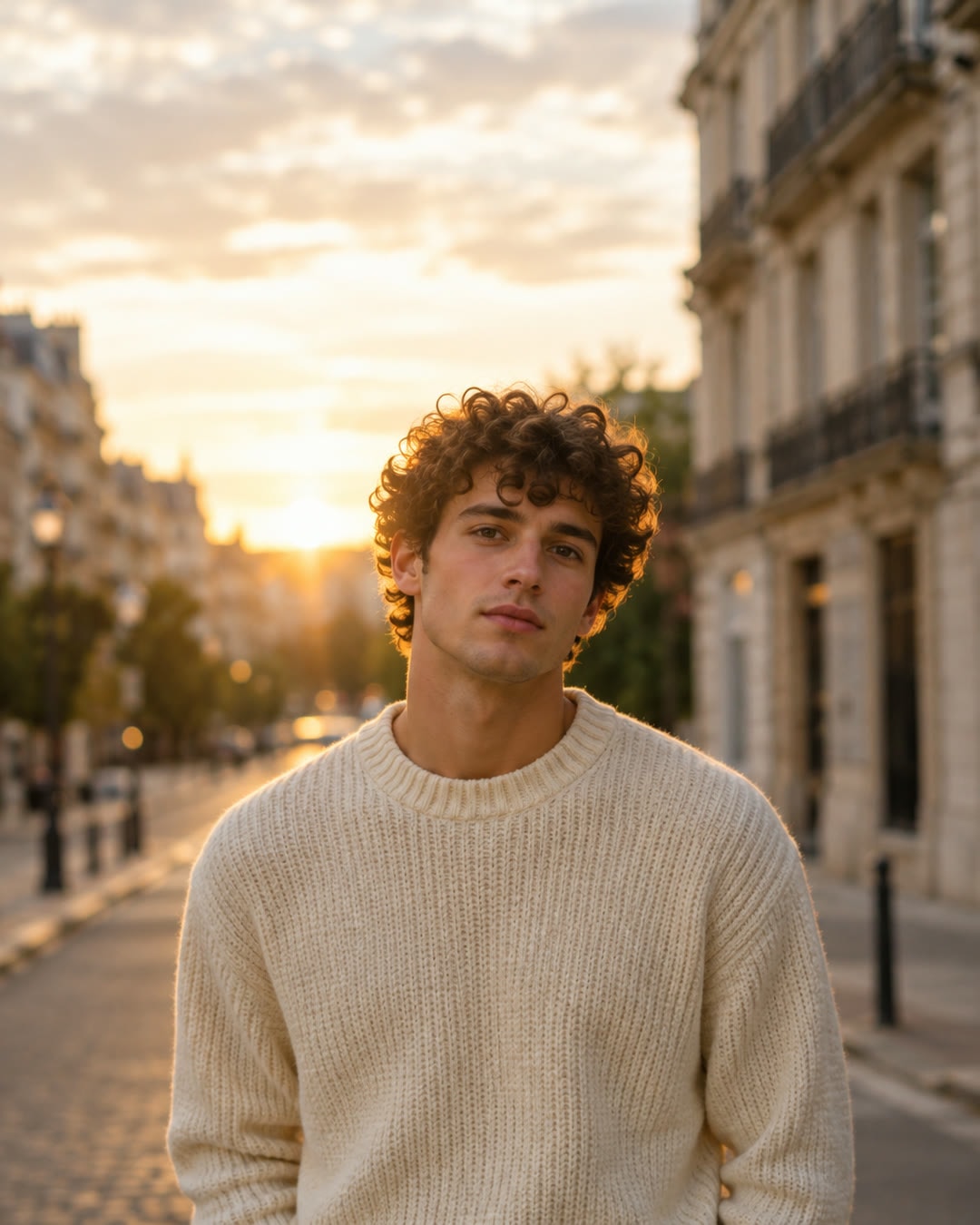
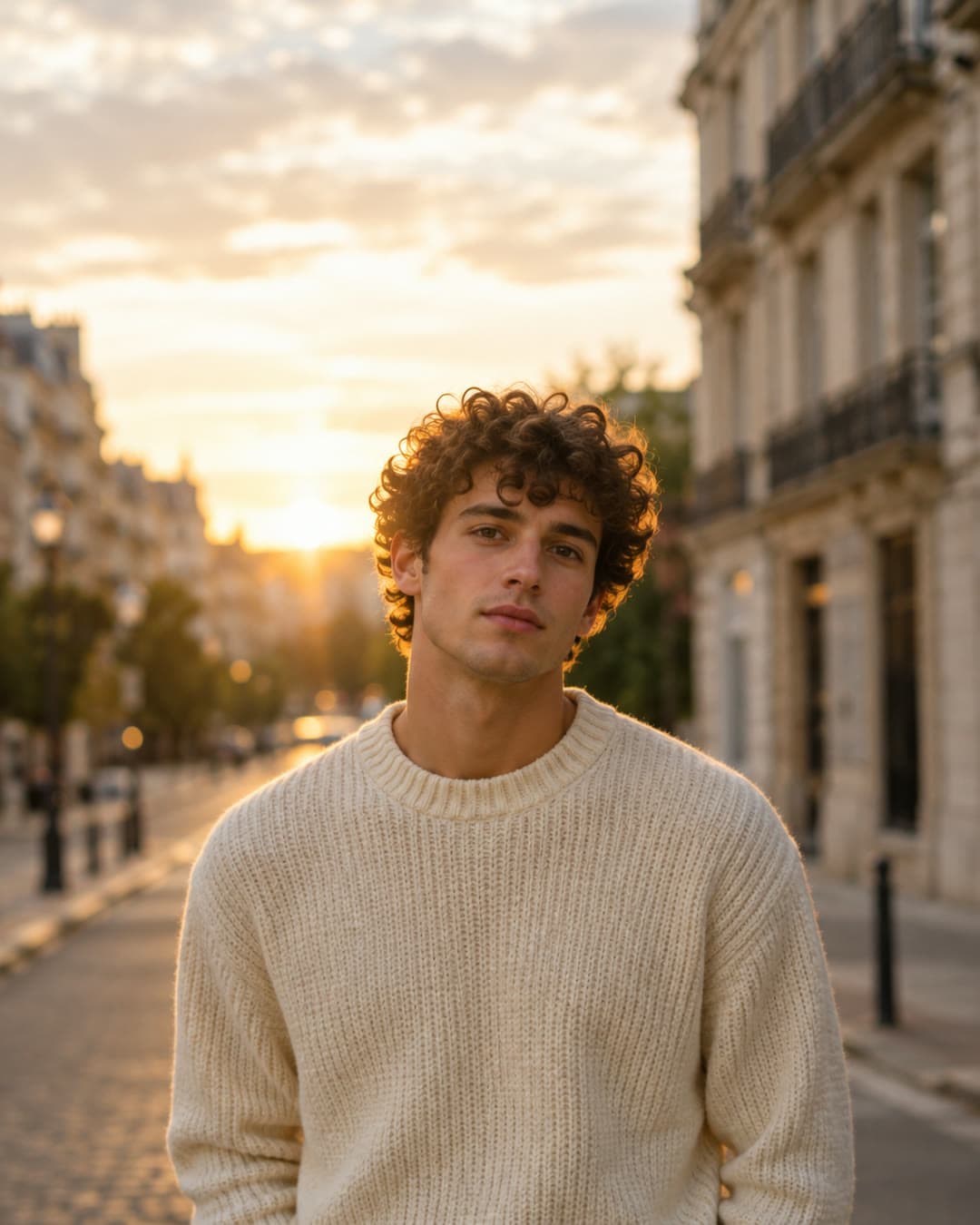
A man in a cream sweater on a street at golden hour
PhotoPremation
Hair-level cut-outs

Golden

A serif title tucked behind a man's curls at golden hour, edited like a magazine cover.

  1. A man in a cream sweater on a street at golden hour01 Photo
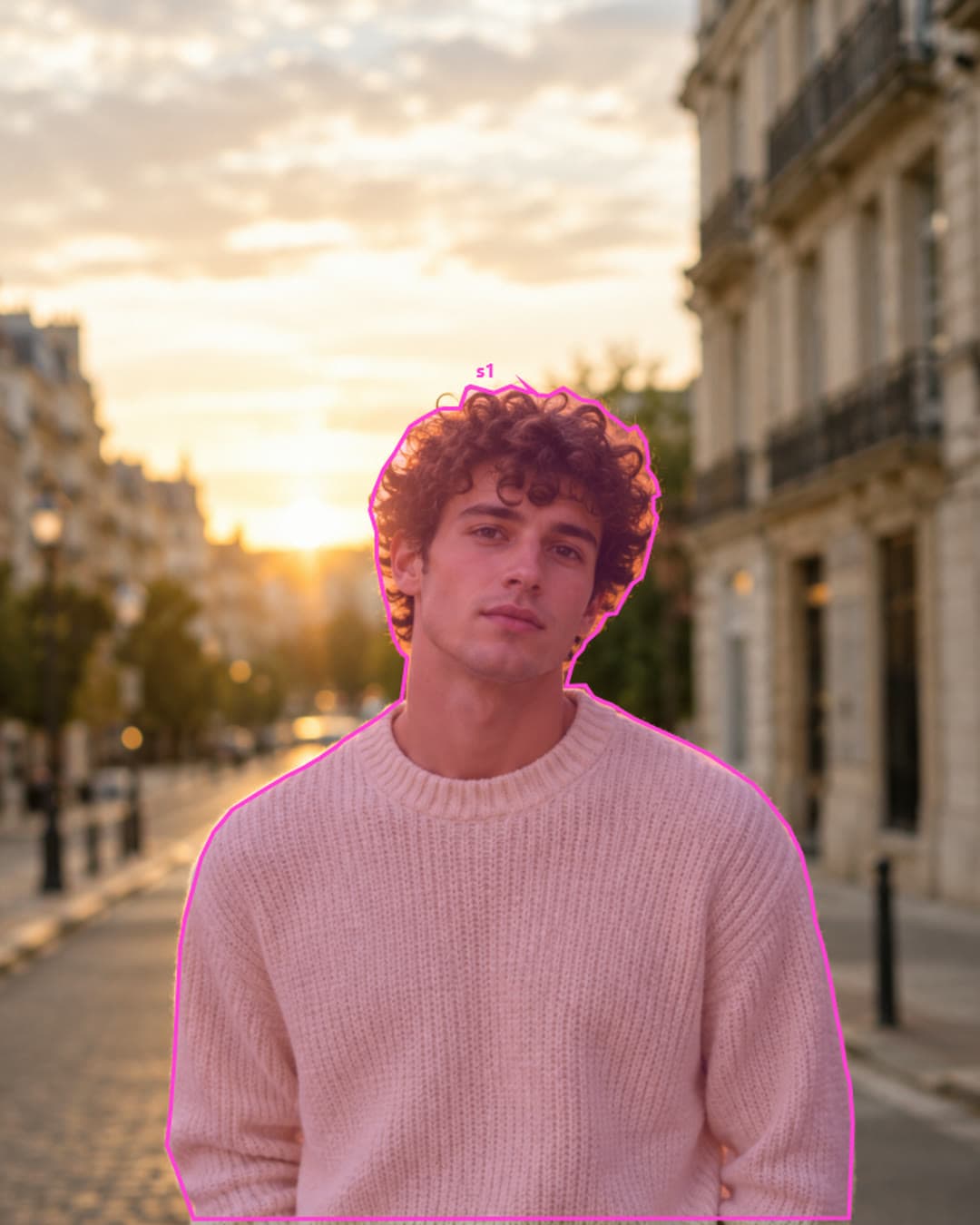
  2. The man outlined by an Object Matte selection02 Object Matte
  3. The word Golden set behind the man's curly hair03 Result

How it was made

  1. Box the subject with the Object Matte tool. Subtract clicks clear the building beside him.
  2. Set the title Behind Subject. Edge contrast and smoothing keep the curls crisp.
  3. Type in deep brown so it reads against the bright sky.
  • Object Matte
  • Behind Subject
  • Edge refine
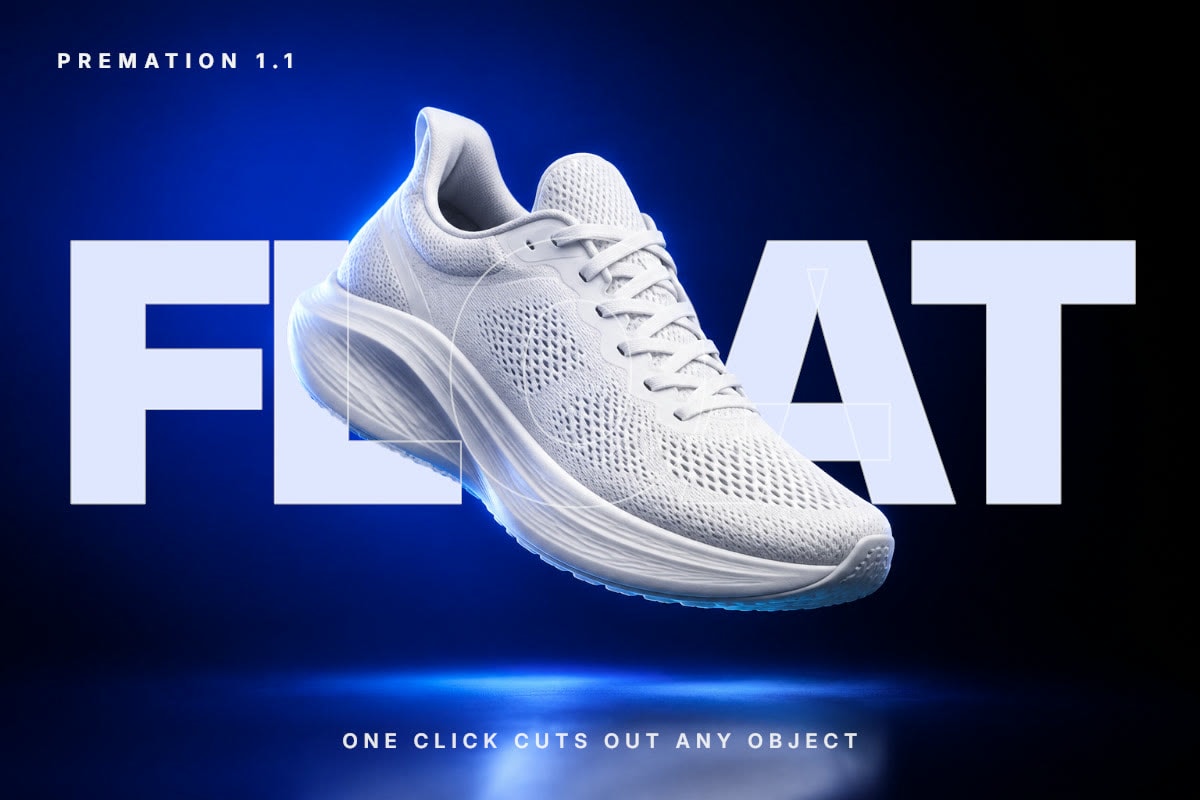
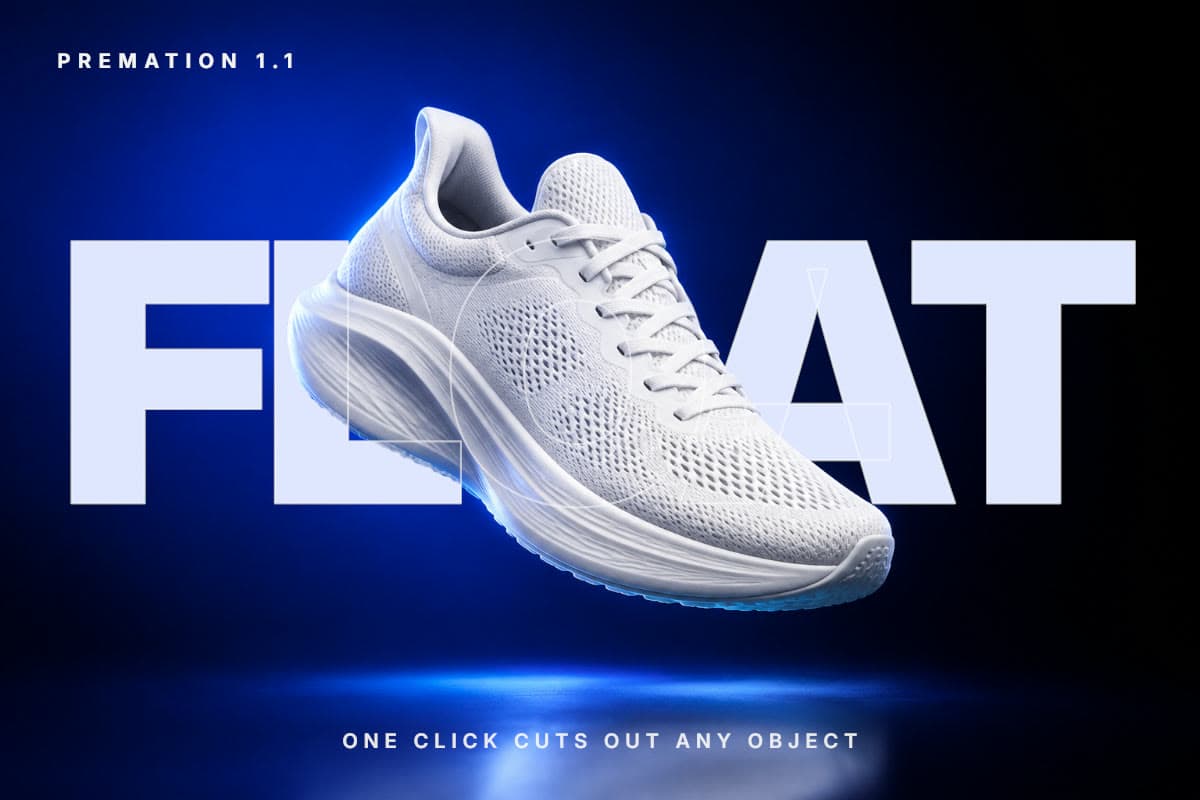
The word FLOAT set behind the sneaker with an outline in front
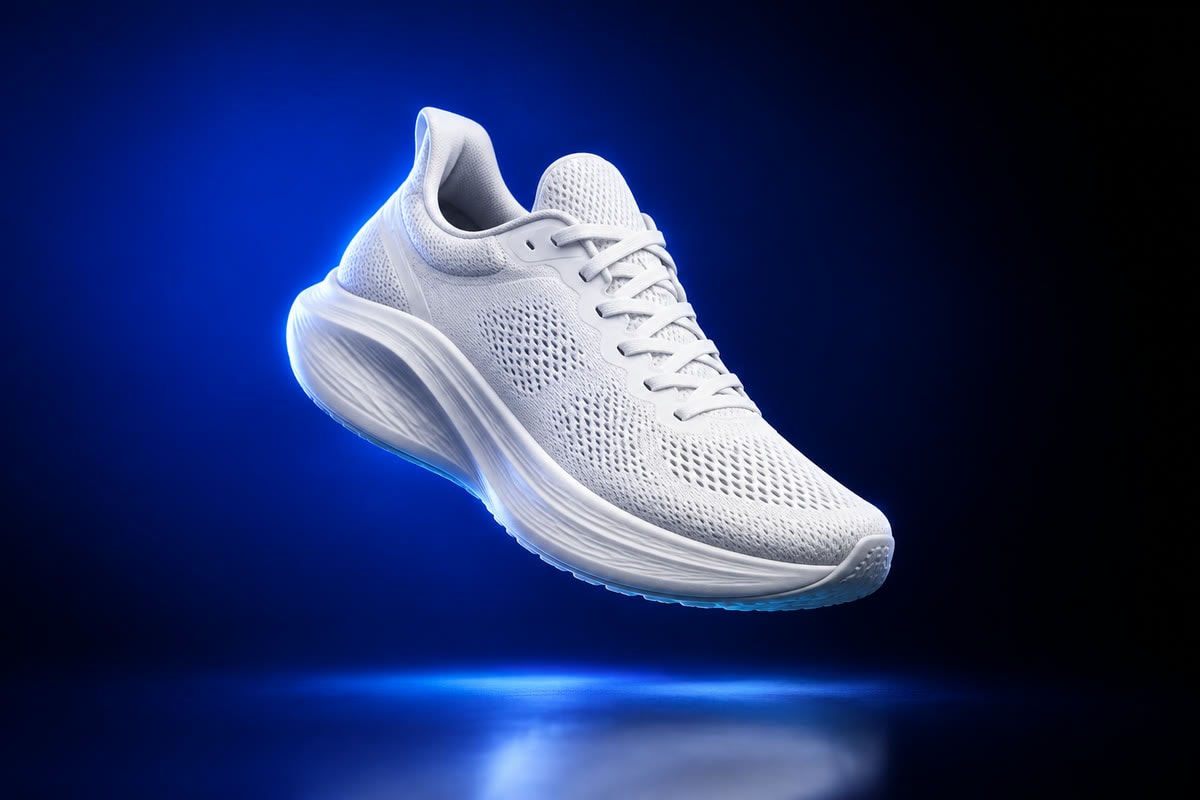
A white sneaker floating on a cobalt studio backdrop
PhotoPremation
Any object, one click

Float

A product shot with the headline behind the shoe and a hairline outline crossing in front of it.

  1. A white sneaker floating on a cobalt studio backdrop01 Photo
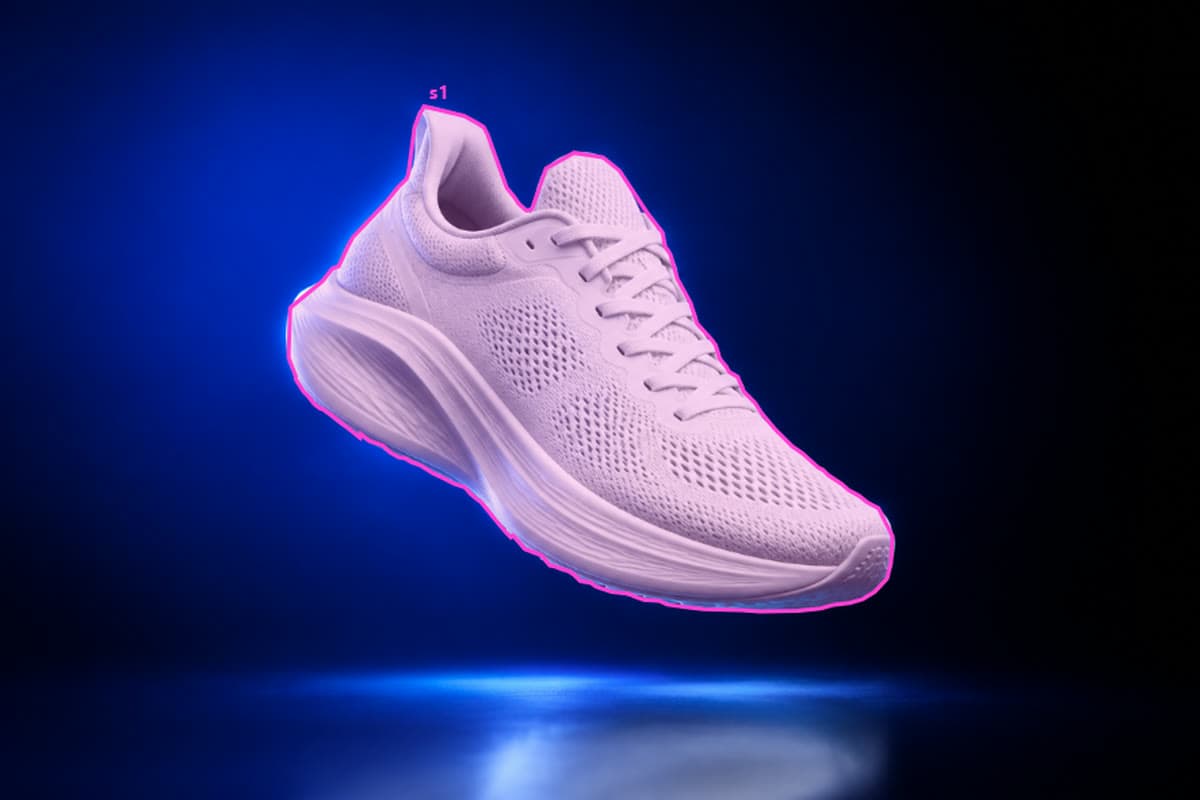
  2. The sneaker outlined by an Object Matte selection02 Object Matte
  3. The word FLOAT set behind the sneaker with an outline in front03 Result

How it was made

  1. Hover the shoe with the Object Matte tool: it lights up as one object. Click once.
  2. A solid copy of the title goes Behind Subject; an outlined copy stays on top at 45%.
  3. No masks drawn by hand.
  • Object Matte
  • Behind Subject
  • Text stroke
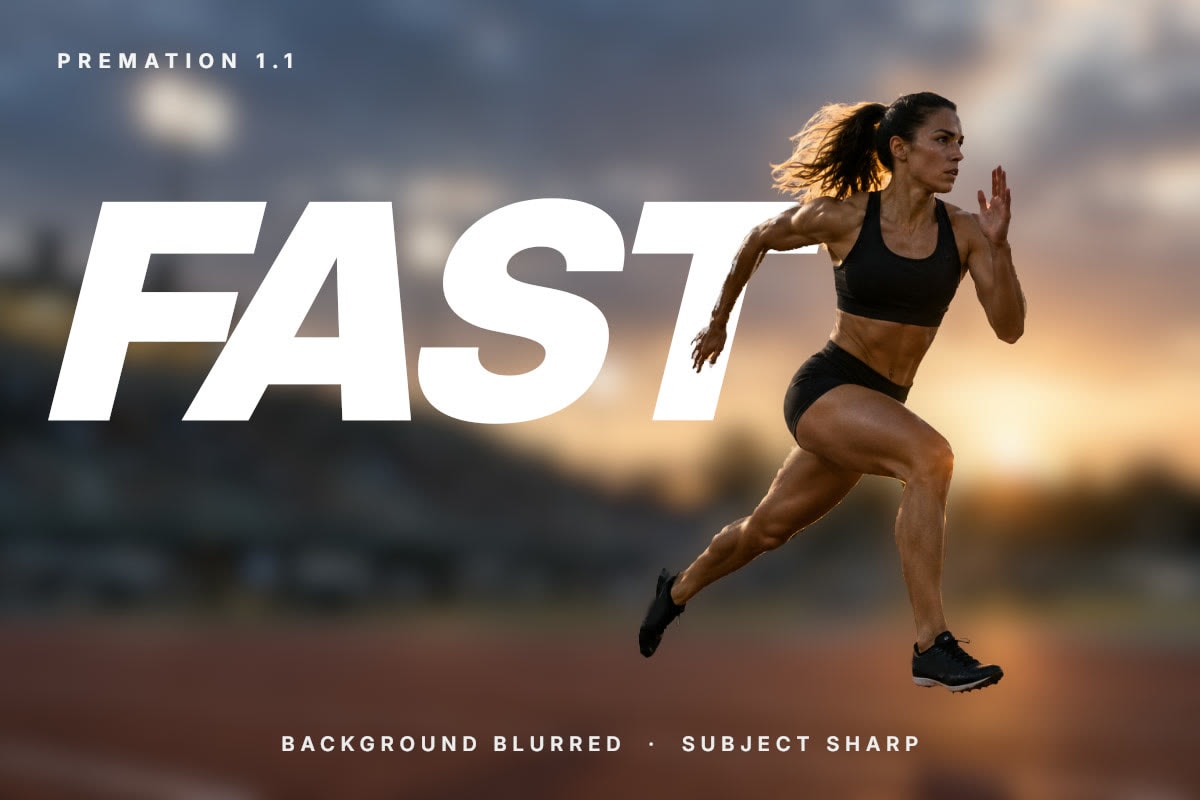
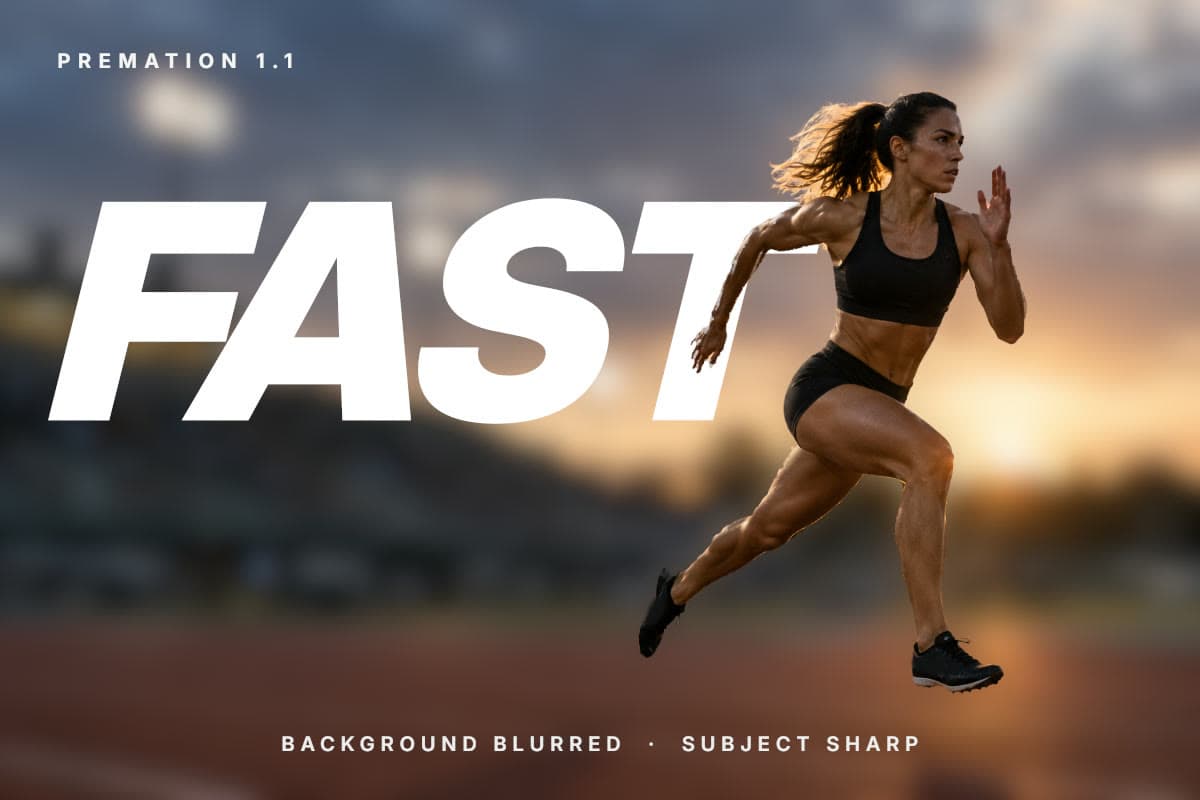
The word FAST set behind the sprinter over a blurred stadium
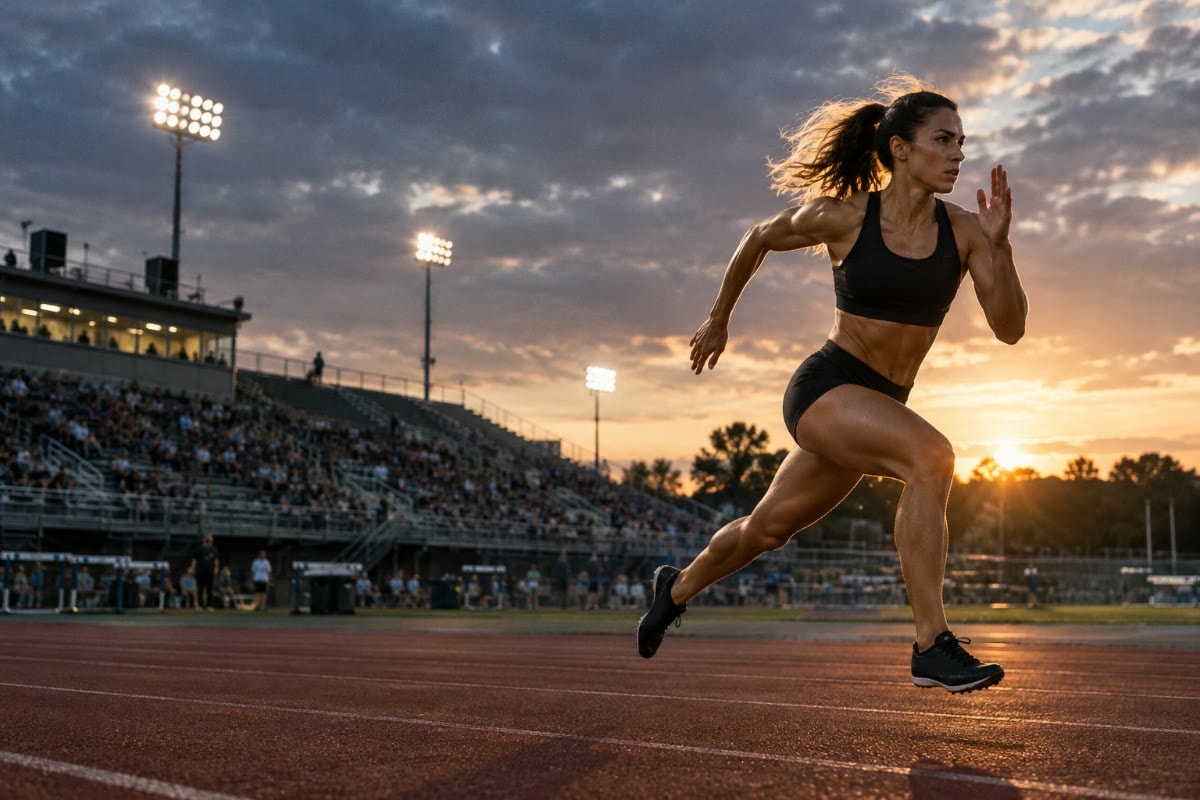
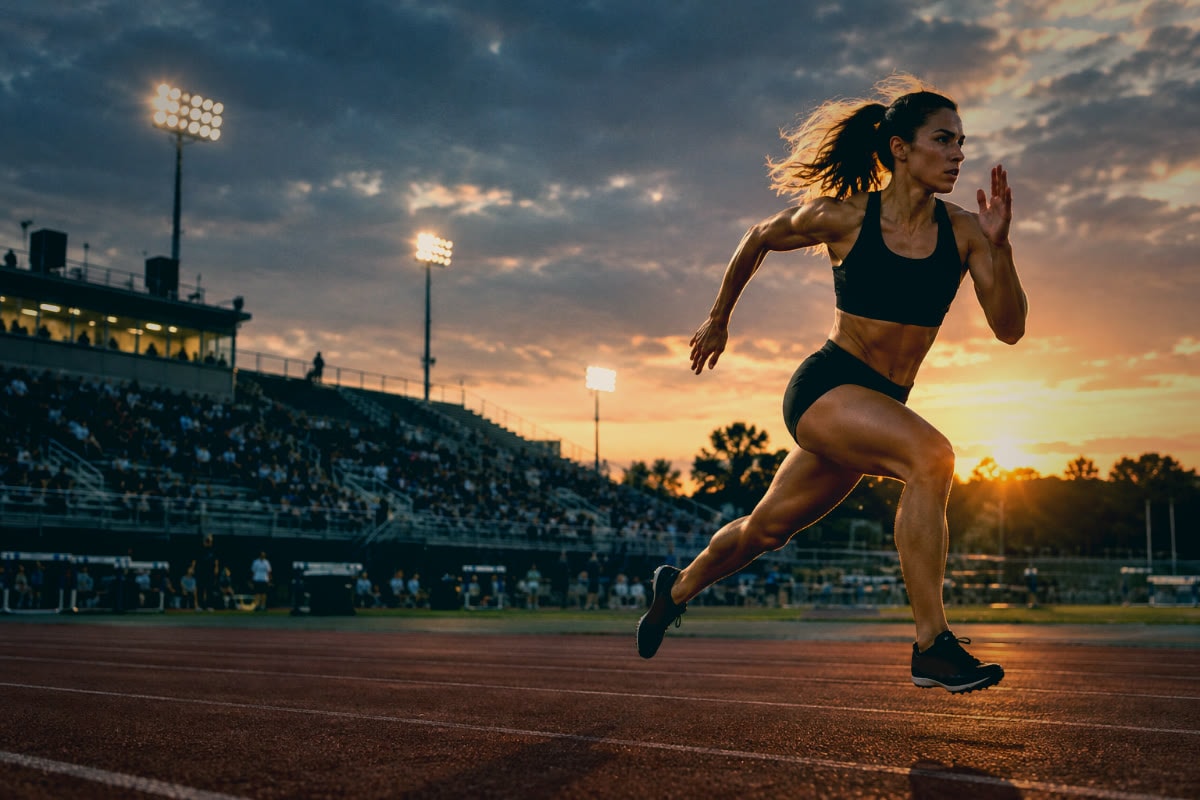
A sprinter mid-stride on a stadium track at dusk
PhotoPremation
Portrait Blur

Fast

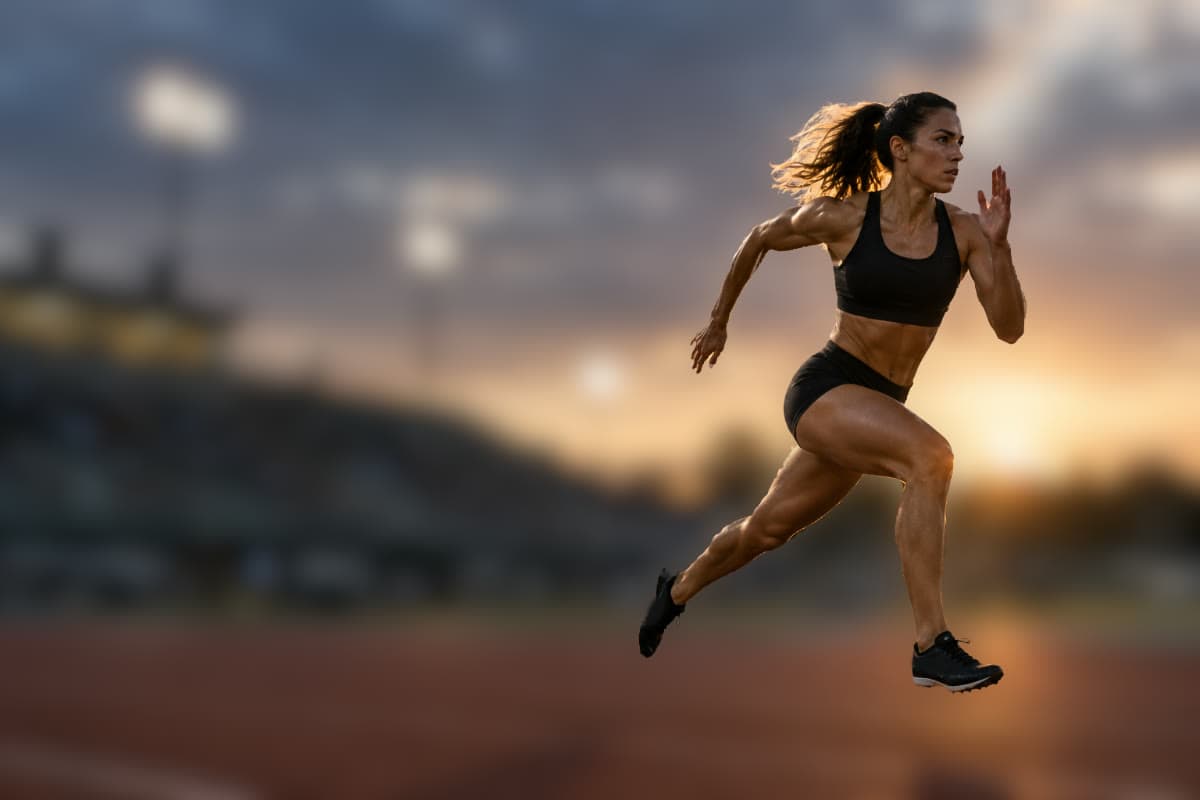
The stadium falls out of focus while the sprinter stays sharp, and the title runs behind her.

  1. A sprinter mid-stride on a stadium track at dusk01 Photo
  2. The same frame with the stadium blurred and the sprinter sharp02 Portrait Blur
  3. The word FAST set behind the sprinter over a blurred stadium03 Result

How it was made

  1. Select the sprinter with Object Matte, then add her back foot with one more click.
  2. Apply the Portrait Blur style: the background blurs and the subject stays sharp, with no halo.
  3. Set an italic title Behind Subject.
  • Object Matte
  • Portrait Blur
  • Behind Subject
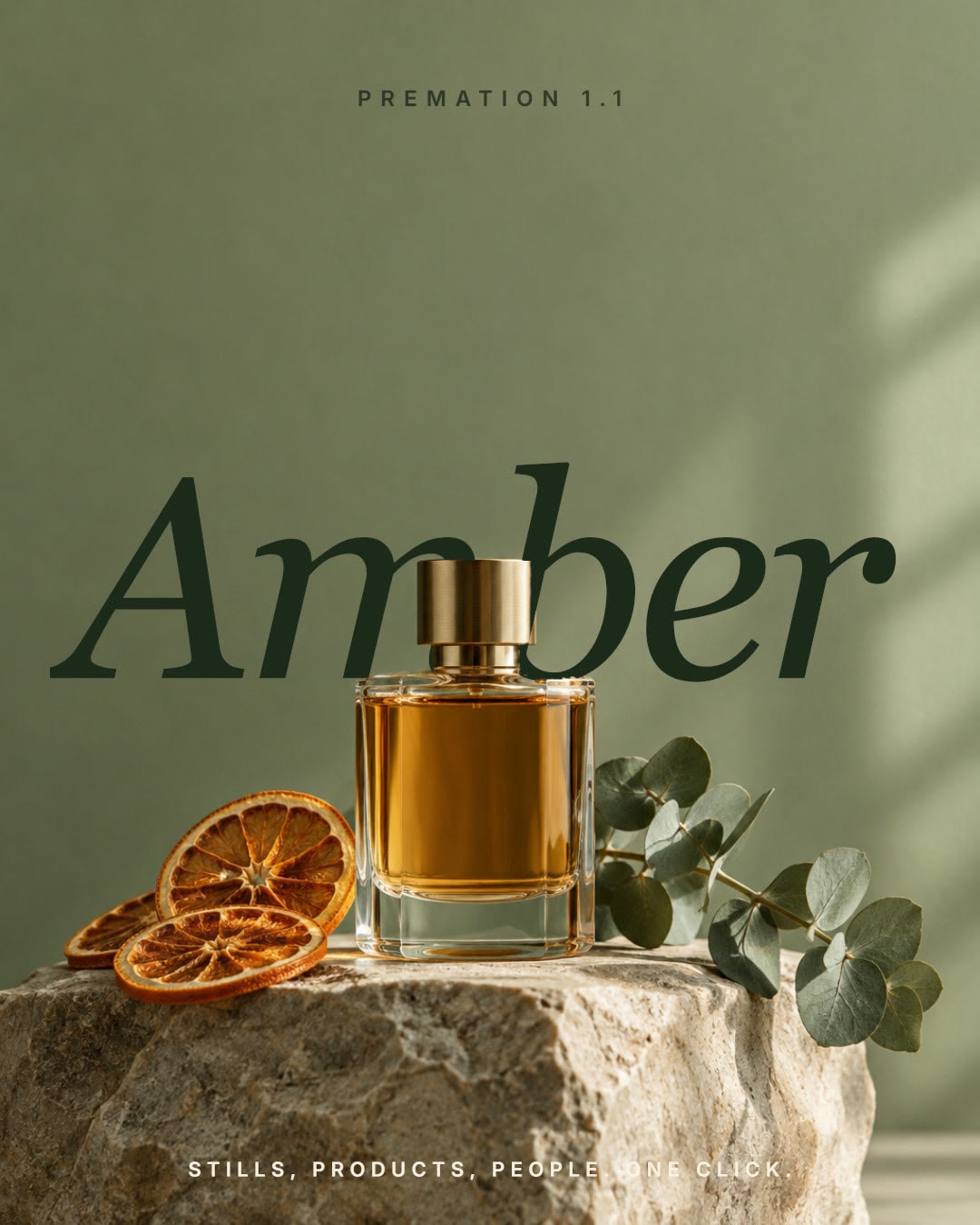
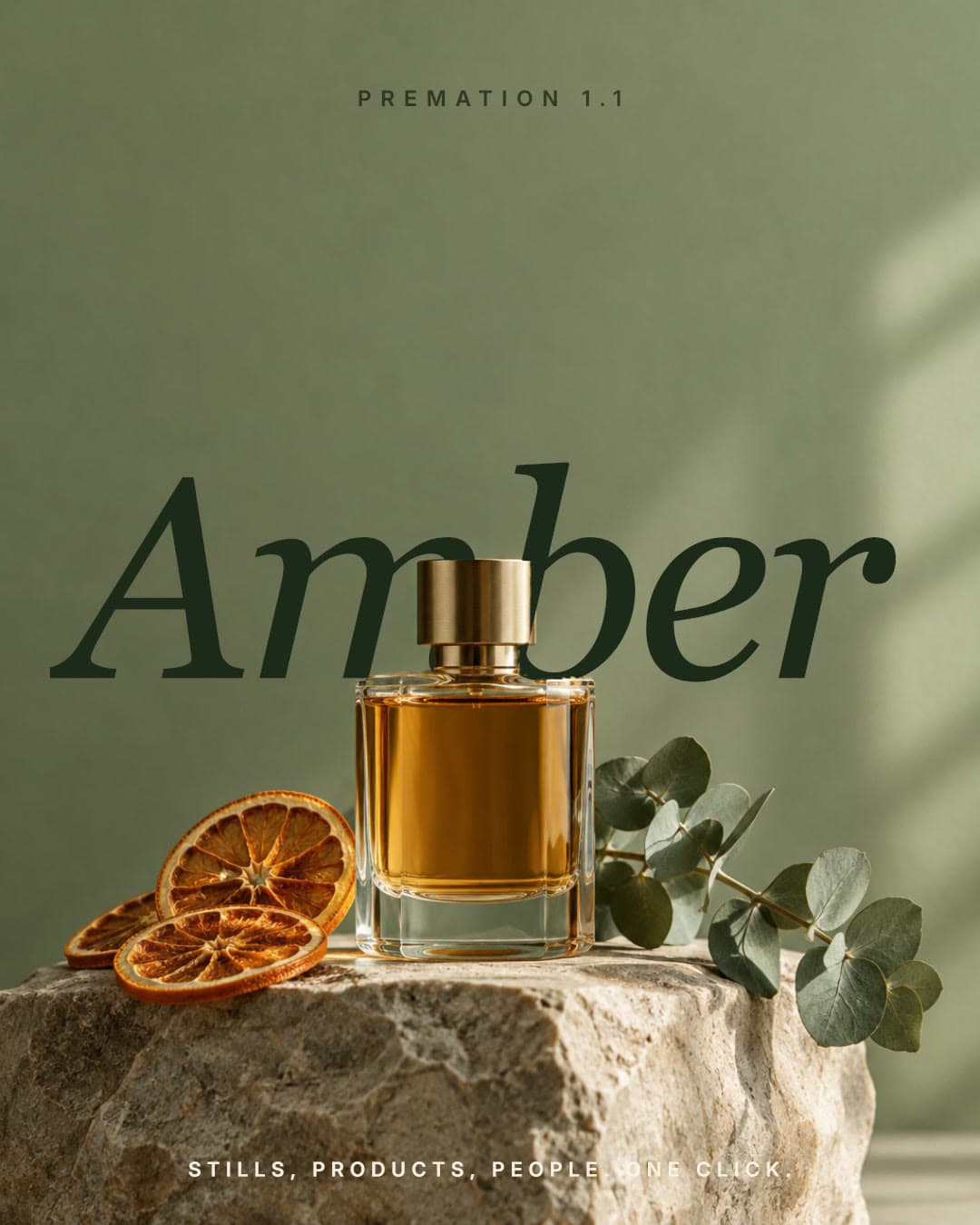
The word Amber set behind the perfume bottle
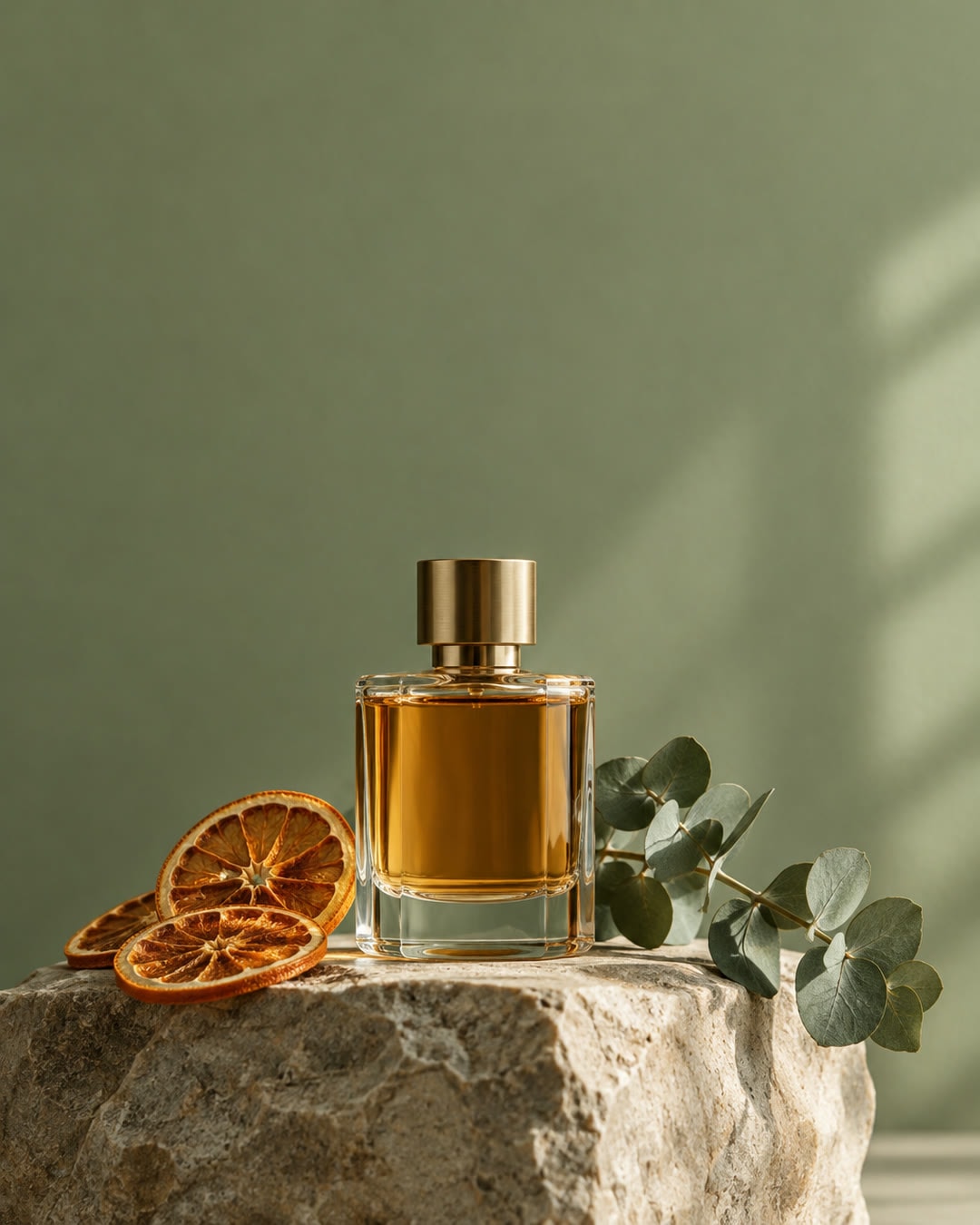
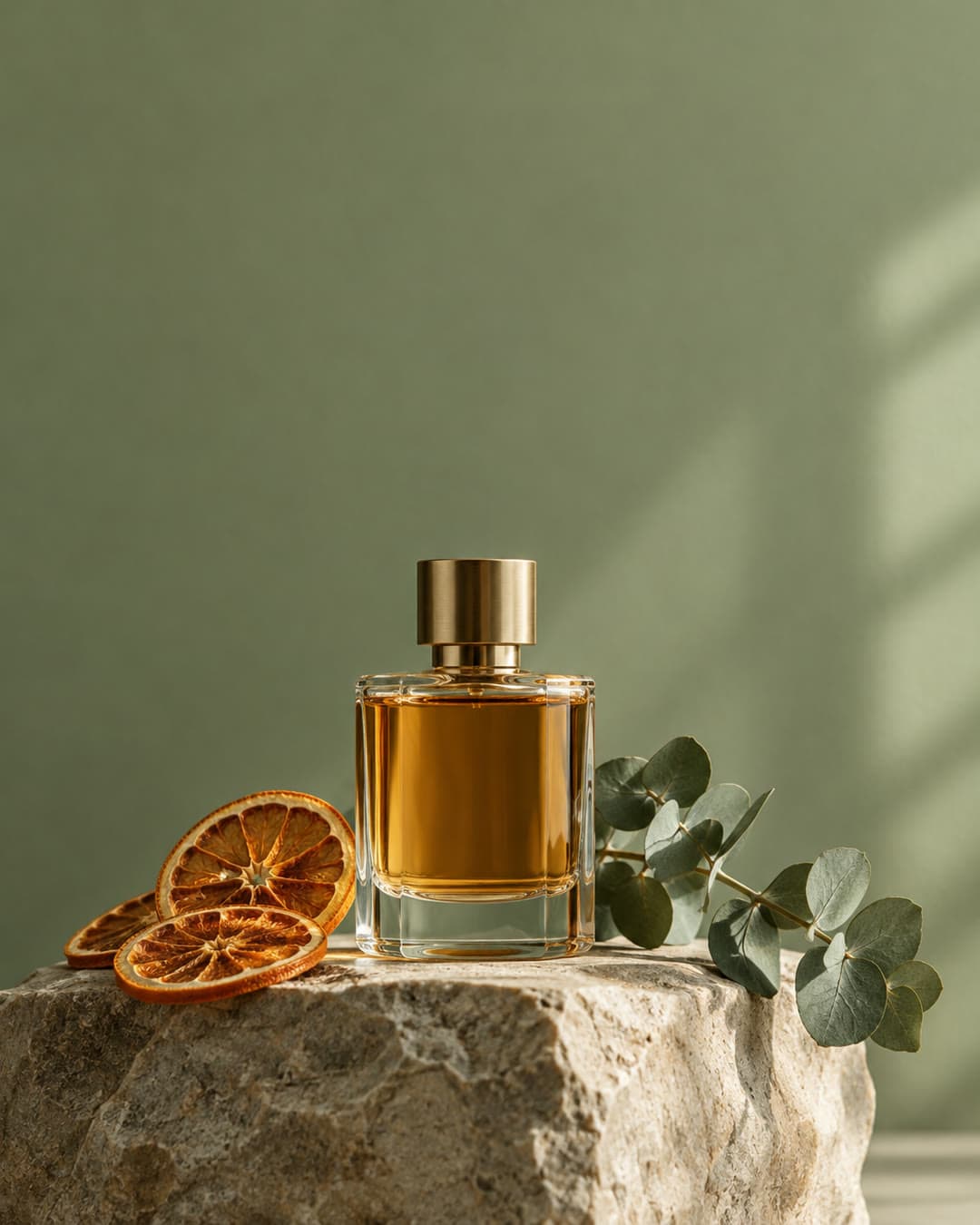
A perfume bottle on a stone plinth against a sage wall
PhotoPremation
Stills and products

Amber

A still life with the product name behind the bottle and the props left untouched.

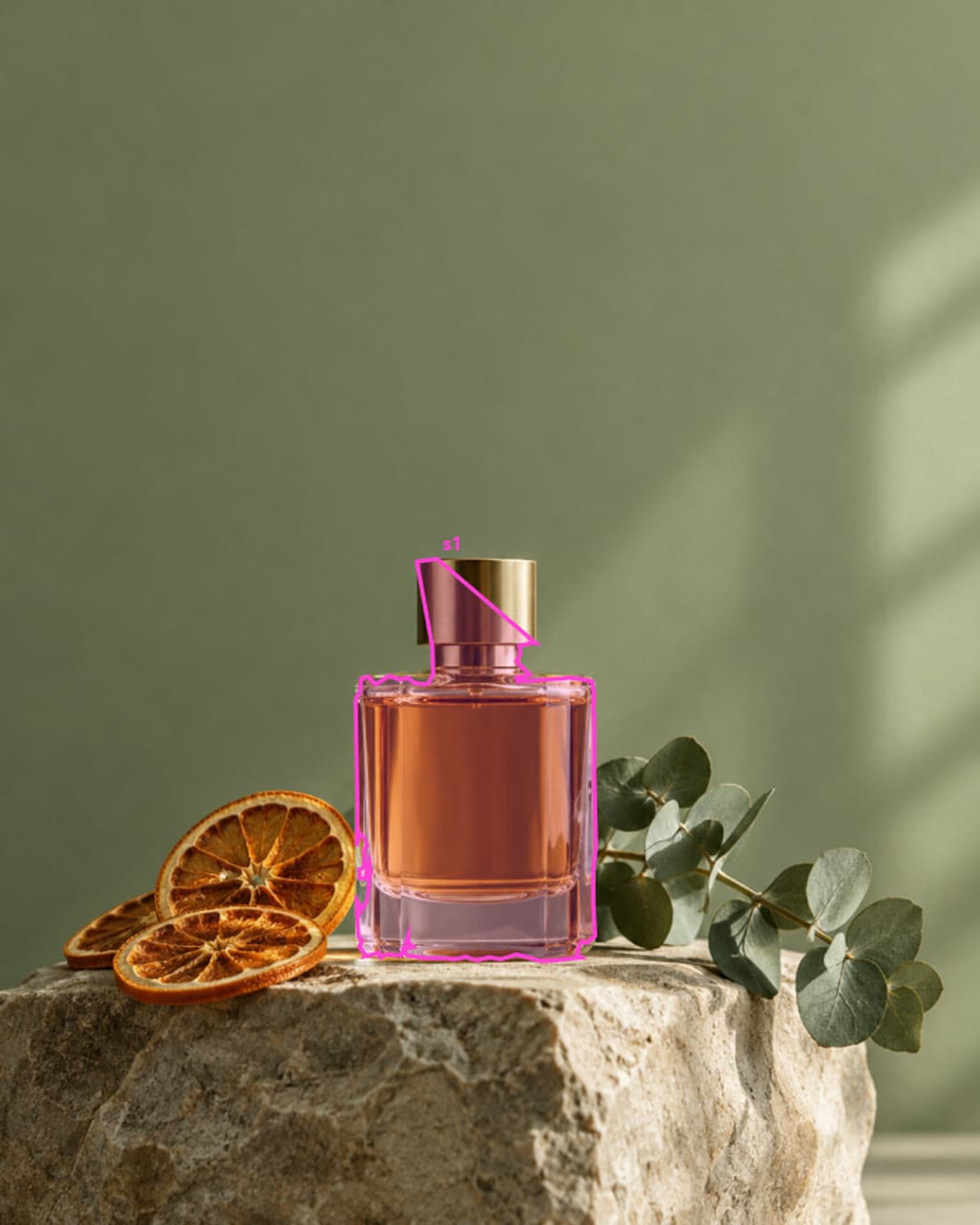
  1. A perfume bottle on a stone plinth against a sage wall01 Photo
  2. The bottle outlined by an Object Matte selection02 Object Matte
  3. The word Amber set behind the perfume bottle03 Result

How it was made

  1. Click the bottle with the Object Matte tool. The oranges and eucalyptus stay part of the background.
  2. Set the serif title Behind Subject.
  3. Caption in cream over the stone.
  • Object Matte
  • Behind Subject

One frame, four grades

The sprinter shot through GPU color effects. Pick a look; the panel lists the effect stack so you can rebuild it.

The sprinter frame graded teal and orange

Effect Controls

  • Lumetri Color
    • Contrast +28
    • Highlights -25
    • Shadow tint 190° · 45
    • Highlight tint 32° · 35
    • Vignette -25

The parts a still frame cannot show

Motion lives in the curves and the type. Both panels below work: pick an ease, scrub the selector.

All features
Graph EditorPosition · Value graph
cubic-bezier(0.33, 0, 0.67, 1)
0f4f8f12f16f20f24f0480960
Position595.2, 540.0

Graph editor. The layer rides the curve you pick.

Text — Animator 1Per character
Range Selector 1
Start100 %
Position0.0, 22.0
Opacity8 %
Blur4.0

Text animators. One range selector, every character offset.

Made in Premation 1.1. The source photos were generated for this showcase; the cut-outs, type, blur and grades were done in the editor.